
Authenticating with OAuth 2.0
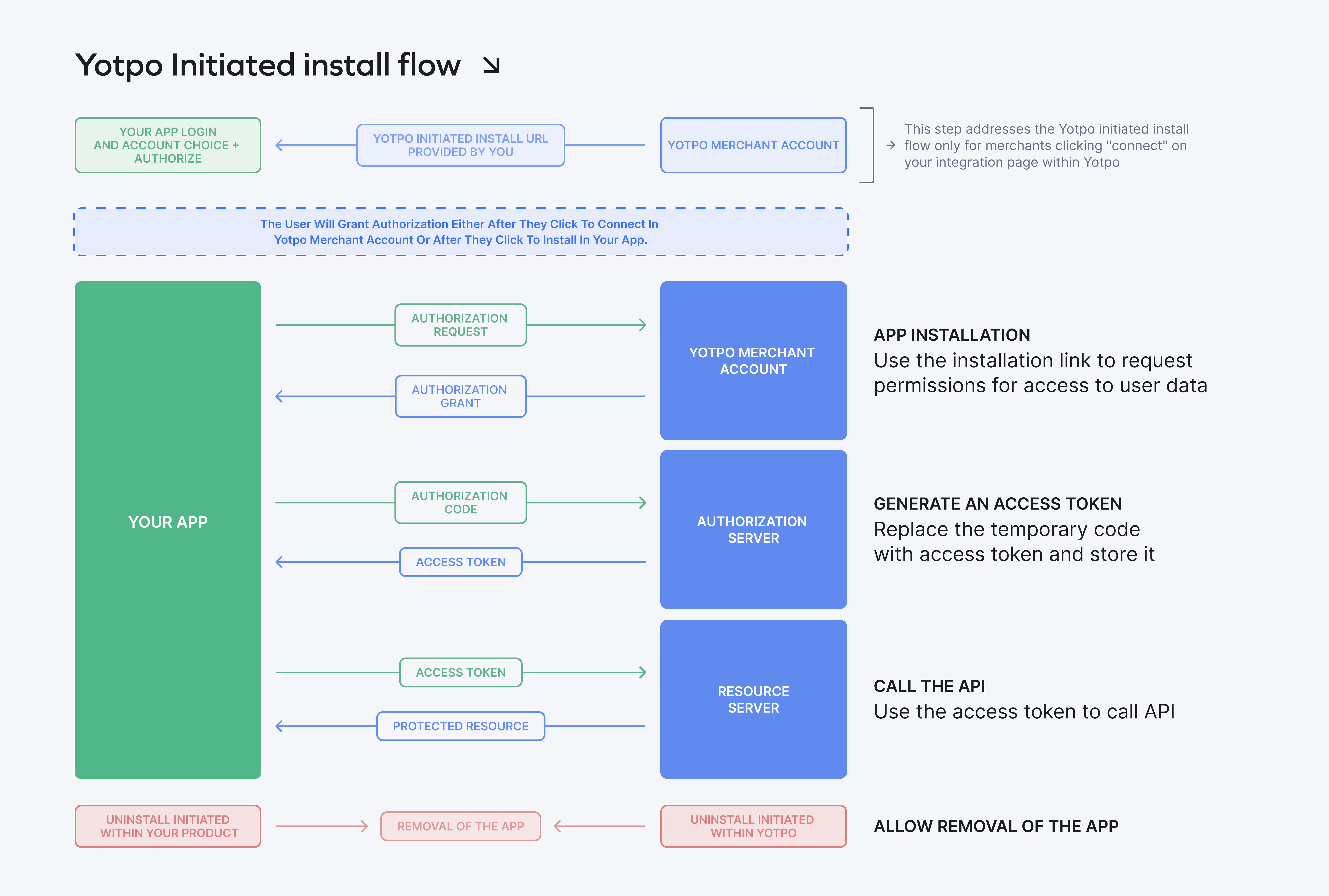
Whenever a shared merchant installs your integration (app) for the first time, a standard OAuth 2.0 flow will be initiated, in which:
- The merchant installs the integration and grants you access to their Yotpo data.
- You create an access token to the App Developer APIs.
- You access the relevant API endpoints needed for your app.
- The merchant can uninstall the app.
The diagram below illustrates the process for a new shared merchant installing your app.
Underneath the diagram is a detailed breakdown for each step:
Step 1: App Installation
Yotpo's infrastructure allows merchants to start installing 3rd party apps either from their Yotpo merchant account or from your product. Here's how you can support both installation flows:
App Installation from the Yotpo admin
- The merchant clicks to install the app from within Yotpo admin.
- The merchant is prompted to authorize your app.
- They are redirected to your start installation link, provided by you.
- The merchant logs into your admin and chooses the specific account to connect to if there is more than one. They are prompted to authorize the Yotpo app.
- The merchant is redirected to an installation link in the following format: https://integrations-center.yotpo.com/app/#/install/applications/{{kong_client_id}}?state={{state_param}}
Please note:Replace {{kong_client_id}} with your unique kong_client ID (aka “Application ID”), which you’ll receive from Yotpo upon the approval and registration of your app. For more information about adding a state param to your call, see this article.
- The merchant is redirected back to Yotpo and immediately back to your admin (using the redirect URL you provided as part of the app registration process).
The merchant's Yotpo API Key and Temporary Code are appended to the end of the redirect URL.
Example:If your redirect URL is https://www.partner.com/yotpo_integration/yotpo_callback,
the following URL will be sent:
Please note:If you are not able to provide an install URL that will prompt the user to log in and choose the relevant instance to connect to Yotpo, you may provide a simple URL that links to the page within your product where the Yotpo integration can be initiated by the merchant.
This path is not recommended as it creates sub-optimal merchant experience. If you choose to take this option please clearly indicate this to your Yotpo product partner manager.
App Installation from partner’s admin
- The merchant clicks to install the app from your admin. They are redirected to an installation link in the following format:
Please note:Replace {{kong_client_id}} with your unique kong_client ID (aka “Application ID”), which you’ll receive from Yotpo upon the approval and registration of your app. For more information about adding a state param to your call, see this article.
-
The merchant logs into their Yotpo admin. They are prompted to authorize your app.
-
The merchant clicks Authorize and is redirected to the Yotpo integration section within your admin (using the redirect URL you provided as part of the app registration process).
The merchant's Yotpo API Key and Temporary Code are appended to the end of the redirect URL.
Example:If your redirect URL is https://www.partner.com/yotpo_integration/yotpo_callback,
the following URL will be sent:
Step 2: Generate an access token
Generate an access token using the following information:
- The temporary code returned in the redirect URL as ‘code’ (received in step 1)
- Your client ID, also known as the kong_client_id, received as part of the application registration
- Your client secret, received upon registering your app
The access token is generated once per merchant and does not expire unless the merchant removed the integration in Yotpo or there is a security concern. If you receive 3 repetitive 401 errors after establishing a successful connection, your token probably expired and you should update the status of the integration in your admin to reflect that the merchant needs to re-install the integration.
Please note:When accessing the different API endpoints, you will also need the yotpo_app_key, which is the specific merchant's public store ID in Yotpo, returned in the redirect URL after the app was authorized by a merchant.
The access token is generated once per merchant and does not expire.
Step 3: Call the API
Use the access token generated in step 2 to access all other API endpoints in the App Market API reference. You can find information specific to your product or use case in the best practice guides below.
Send the token in the X-Yotpo-Token header of every request, and the merchant's store ID (app_key, from the redirect URL in step 1) in the path:
curl "https://developers.yotpo.com/core/v3/stores/YOUR_STORE_ID/products?limit=5" \
  -H "X-Yotpo-Token: YOUR_ACCESS_TOKEN"
Use the header, not Bearer or the URL
Authorization: Beareris not supported. A request that sends the token only that way gets401with"The access token is missing".- The API also reads an
access_tokenquery parameter, but tokens in URLs end up in server and proxy logs. Use the header.- A wrong, revoked or expired token gets
401with"error": "invalid_token".
Integrating with multiple stores in YotpoThe access token you receive will only apply to the specific store instance in Yotpo that the merchant picked and authorized the app for. If the merchant has additional stores within their Yotpo account (whether for different languages, testing or multiple brands), they will need to install the same app on each of these stores separately.
Step 4: Allow removal of the app
For privacy and troubleshooting purposes, we require that all apps allow merchants to ‘uninstall the app’ and prevent future access to the API. You will need to support both of the following options for a merchant to uninstall your app:
- Uninstall initiated within your product - add an ‘uninstall’ button on your interface that calls the Remove Application endpoint. This deletes the access token. The option to re-install the app must appear immediately: a new install gives you a new token.
- Uninstall initiated within Yotpo - merchants can also uninstall partner-built apps from the Yotpo admin by clicking “Disconnect” on the integration page. Yotpo deletes the access token, and the “connect” button on the integration page re-appears. You should immediately allow the merchant to reinstall the app in your product as well.
Either way, Yotpo deletes the store's webhook subscriptions and then sends you the App Disconnected event in real time. Register for it as described here as part of your app creation. Events for the store can keep arriving for about a minute while this happens.
If the merchant installs your app again, create the store's webhook subscriptions again with the new token: reconnecting doesn't restore them. A 401 response for a merchant also means the token is gone, most likely because the app was uninstalled.
How to register for the uninstall webhook?See all details here.
Updated 4 days ago